VCF Installer overview
VCF ARCHITECTUREVCF NETWORKINGVCF VSAN
VCF Installer Walkthrough
VCF Installer
VCF Installer previously known as the Cloud Builder Appliance is used to deploy the first VCF management domain. It validates hardware and networking ensuring consistency.
Once VCF is deployed, the installers role is largely finished. SDDC manager takes over the life cycle management.
If at any point you have entered incorrect information that is non-compliant. The Installer stops.
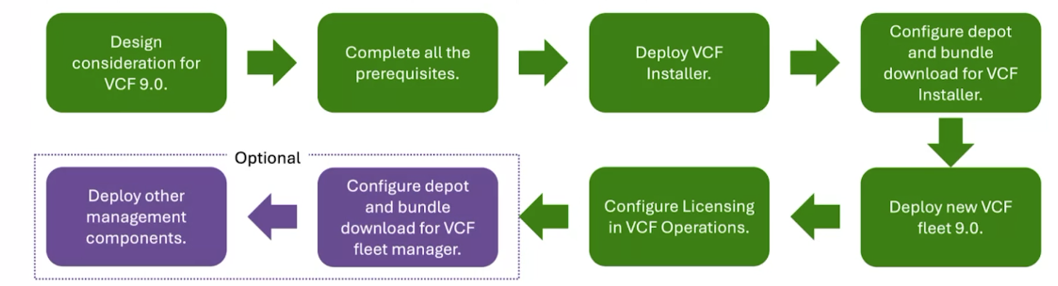
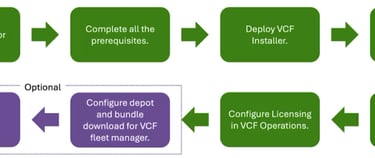
One of the very first items we need to understand is the installation workflow of a fresh VMWare Cloud Foundation install.
First, we need to study the design considerations followed by the prerequisites. These are important as we work through the installation. After this we move onto the VCF Installer and then configure the depot. This allows us to download the software bundles.
Next, we deploy VCF Fleet 9.0 and finally we configure licensing from VCF operations. Lets dive deeper into each stage of the configuration.
VCF Requirements
Before diving into the new platform, we must first ensure we meet the following requirements for fleet deployment.
- VLANs on physical Fabric.
o Mgmt VM
o ESX mgmt.
o Vmotion
o Storage
o Host teps
o Edge teps
o Edge uplinks(optional)
- Forward & Reverse DNS for all mgmt. components
- Configure NTP
- Deploy ESX images
- Assign static Ips to ESX hosts
- Setup depot (Offline Only)
- Deploy VCF Installer VM
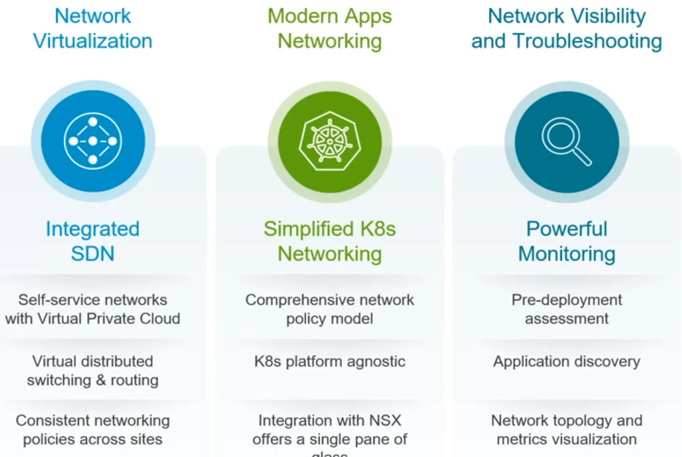
The networking for K8s has been simplified compared to previous versions of VCF where specific T0’s had to be deployed for K8s.
Preparing ESX Hosts
Once we have fulfilled these requirements, we need to prepare the ESX hosts. We need the following:
- Install ESX 9.0
- Configure VLAN for host mgmt.
- Configure VLAN for VM mgmt.
- Configure NTP
VCF Installer
This finally brings us to the VCF installer. This simplifies the deployment of VCF for new and existing deployments. The installer allows for bulk install of components and reduces the risk by using validated designs. You’ll see as you go further into this blog. Each step is verified and you cannot go further. This is why its very important to meet all the pre-reqs.
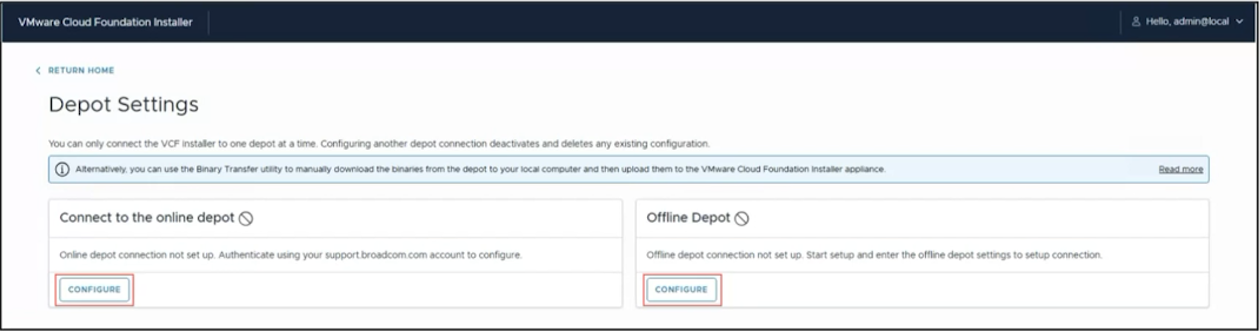
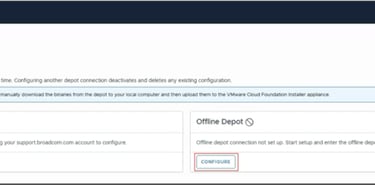
Next step in the process, configuring the depot. this gives two options. Offline depot (Which will require more details) or the online depot which will ask you for a download token (The download token can be generated from the Broadcom website).
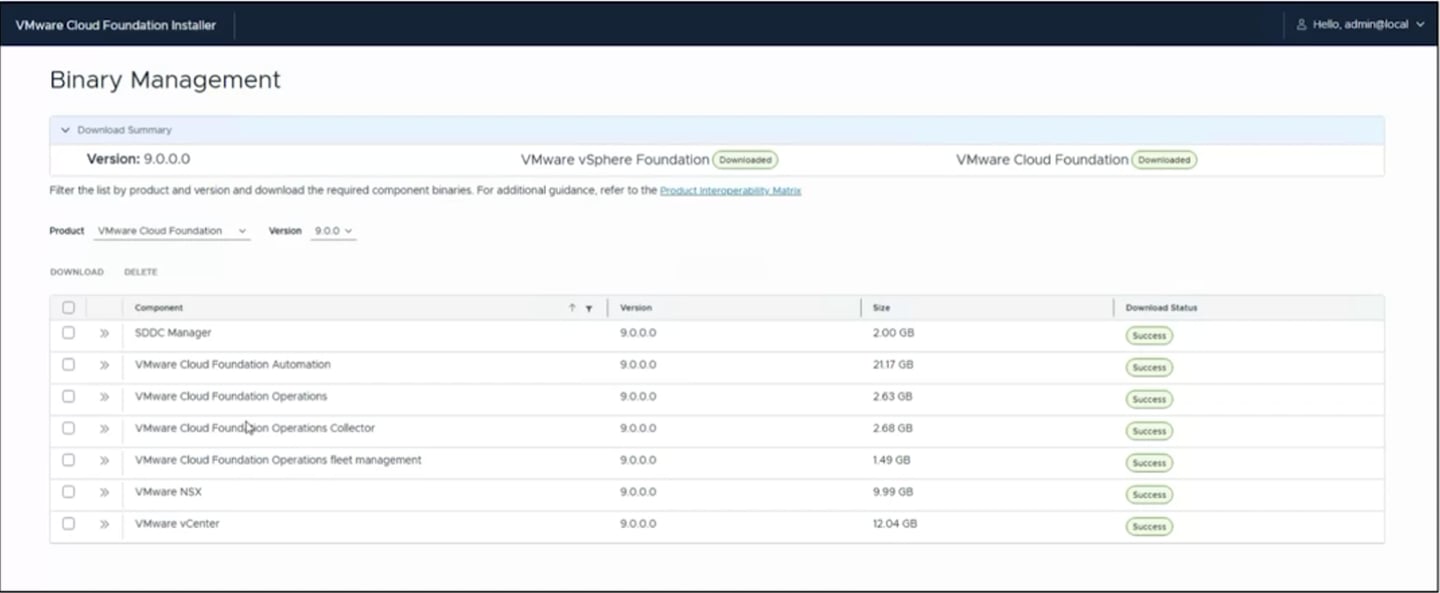
Binary Management
Once you have generated the download token, the next steps allow you to select the images you wish to deploy/download.
Deployment Wizard
Now that we have downloaded our binaries we can move onto the deployment wizard. We have a couple of options. Deploy VMWare Cloud Foundation using the wizard or deploy using JSON spec (You’ll see later in the blog, you can export the JSON and import when deploying new instances) This saves a whole load of time if you are deploying multiple instances.
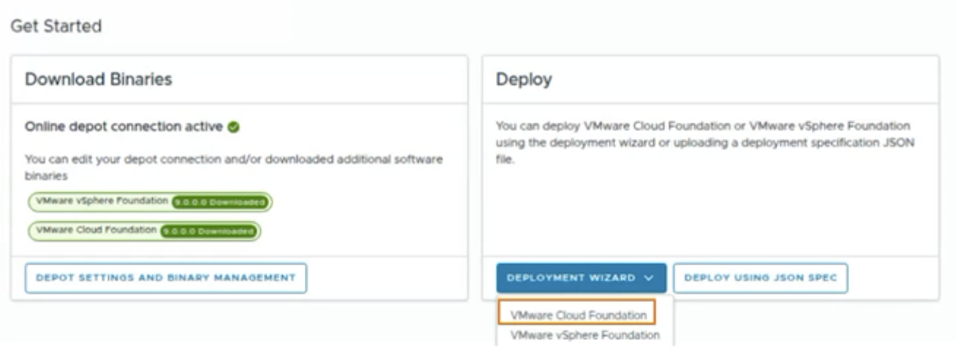
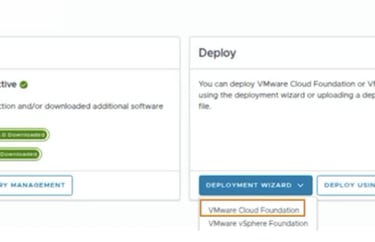
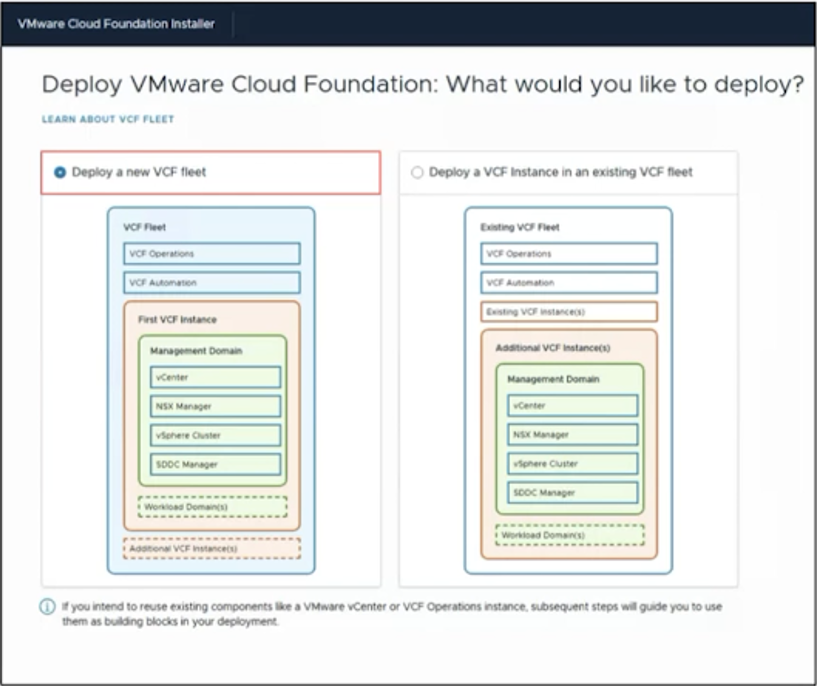
Deploy a VCF Fleet
The installer can be used to deploy the first VCF instance or you can add a instance to an already existing Fleet.
Deployment Steps
In the next stage of the configuration process we will walkthrough the 12 steps of configuration. Most of these details will be picked right out of the planning done earlier in this blog.
Existing Components
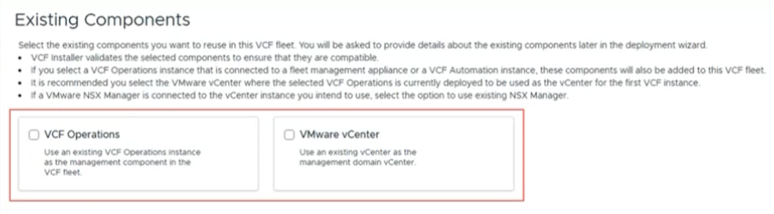
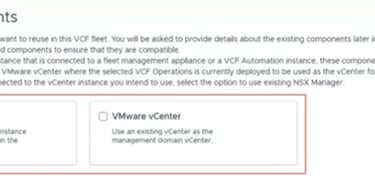
First we come to the Existing Components. We can migrate old components into VCF. This will allow you to migrate a vCenter or VCF operations into this Fleet. (If this is a greenfield deployment, simply click next)
VCP Operations
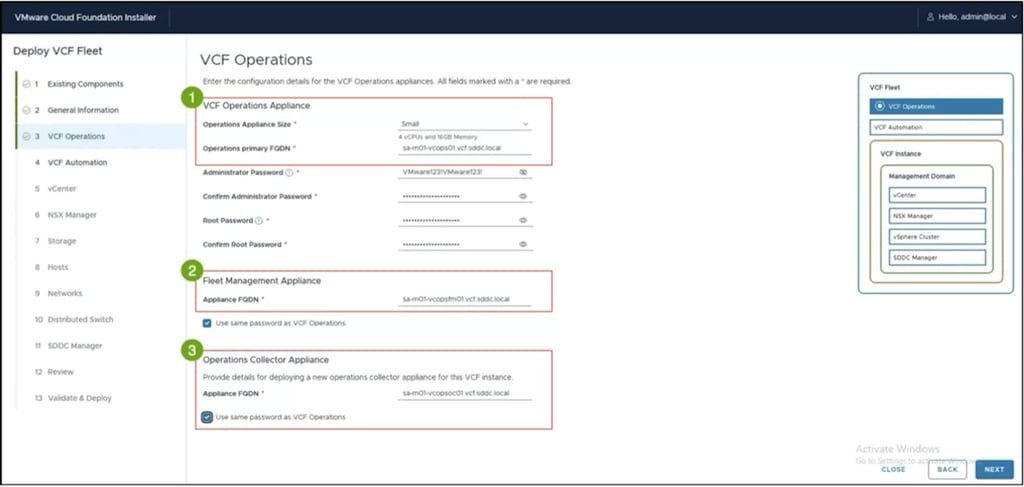
In the VCF Operations sections we configure the details of the appliances. for example username, passwords and FQDNs.
VCP Automation
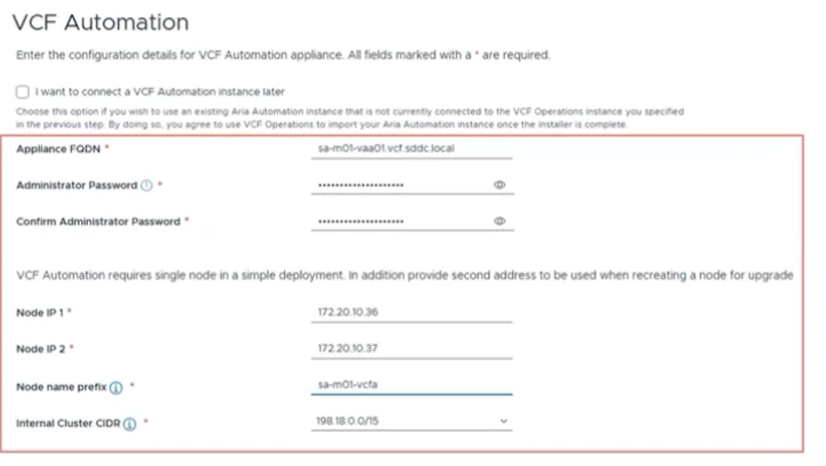
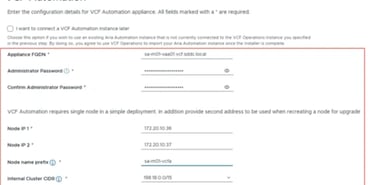
In the following section we configure the VCF Automation appliance. This requires FQDN, username and password.
A couple of important notes here, you must fill in the node name prefix, it must be all lowercase and must start and end with alphanumeric characters.
The internal Cluster CIDR must be unique and NOT overlap. VCF automation appliance is a Kubernetes Service and requires a minimum of 1024 host IPs.
VCF Automation can be configured at a later stage. Simply check the box and click next.
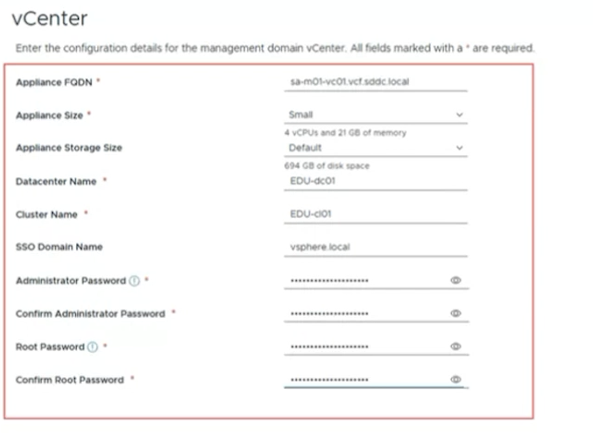
vCenter
If you following section you will supply the appliance size, storage size, DC name, Domain name, root password and admin password.
Sizing Recommendations: VCF management domains often require larger vCenter footprints. While VCSA offers sizes from Tiny (2 vCPU/14GB RAM) to X-Large (24 vCPU/58GB RAM), the large or x-large configurations are common to handle high host/VM counts.
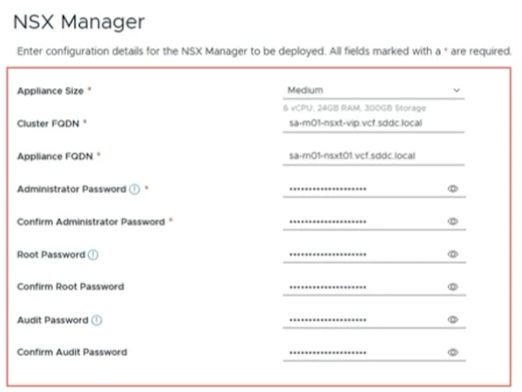
NSX Manager
On the NSX Manager configuration page, you provide the appliance size and FQDN. This section also allows you to create users for root, admin and audit.
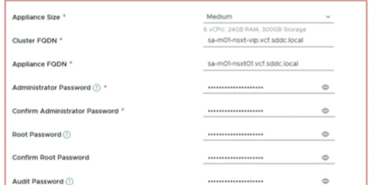
VCF Storage
Storage section allows you to choose your type of storage and the relevant options
For storage you can select your storage type. This can affect the minimum number of hosts required. For VSAN minimum hosts is 3. For FC you can have two hosts in the mgmt. domain but you would be stretching resources on the physical servers.
Hosts
In this section you add the hosts for your management domain. you must add and verify the fingerprints of each host.
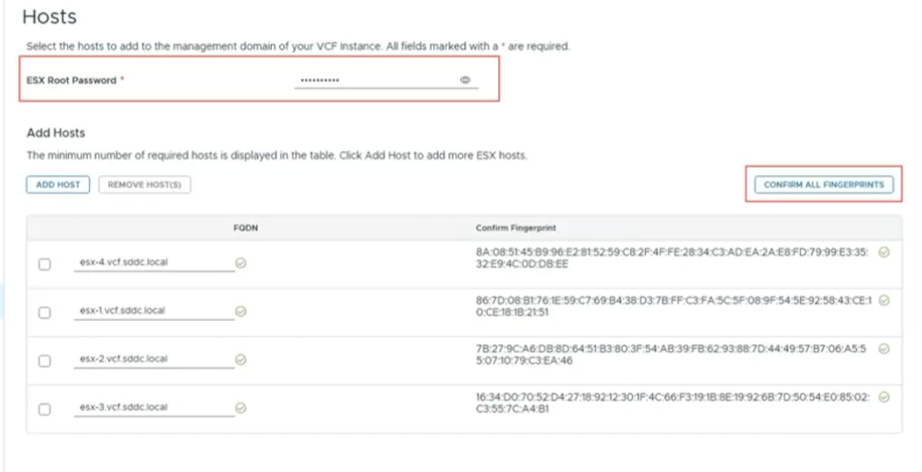
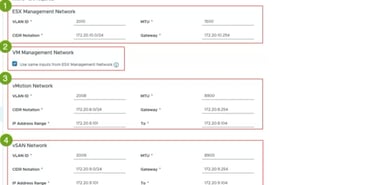
Networks
Under the networks you configure all things networking. ESX mgmt. network, VM mgmt. network, vmotion and vsan. All that planning comes in handy here!
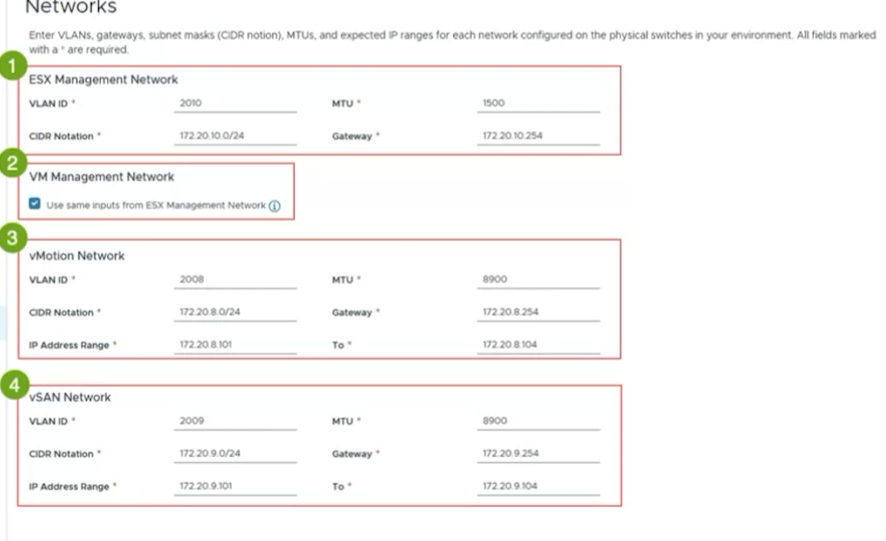
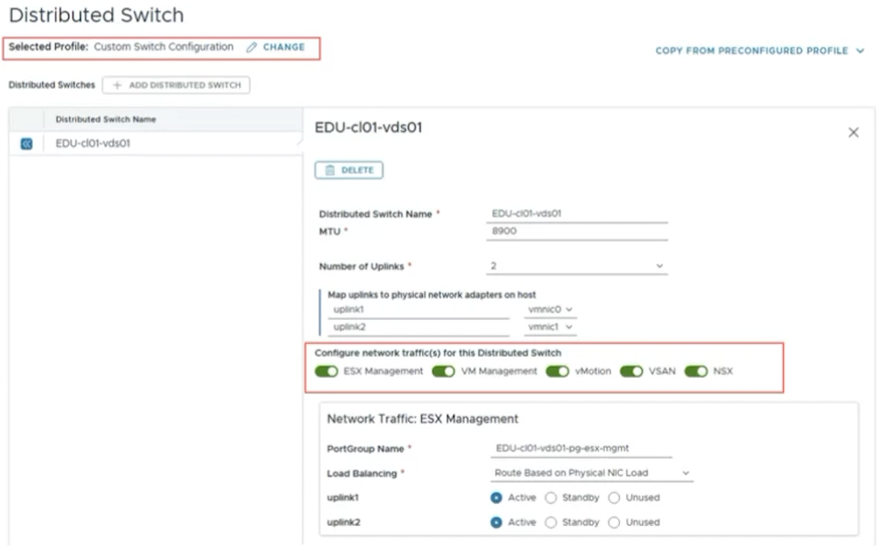
Distributed Switch
Distributed switch allows the configuration of the switch name, MTU size and mapping of the host uplinks. You can configure the port group and load balancing algorithm. This can be done for ESX mgmt., VM mgmt and vMotion.
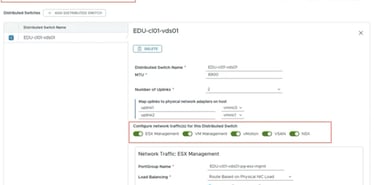
You can configure the distributed port group name and load balancing algorithm for the ESX management networks, VM Management, vSAN and vMotion.
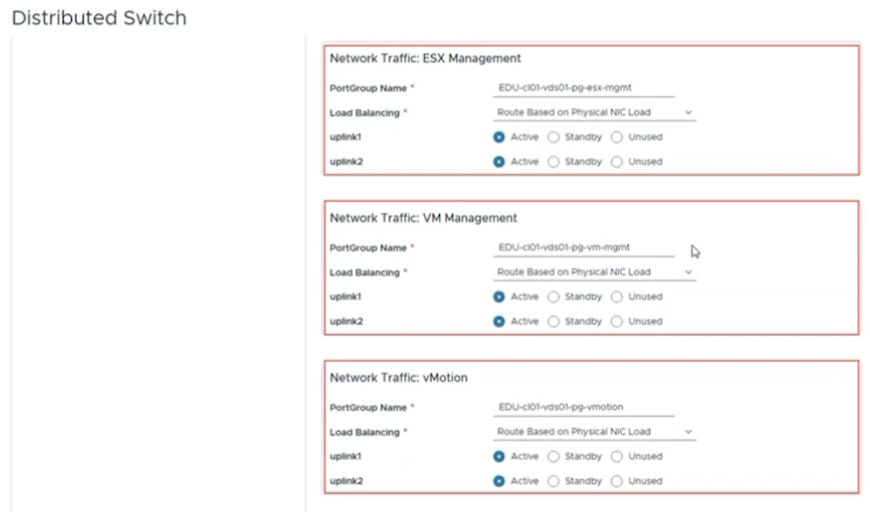
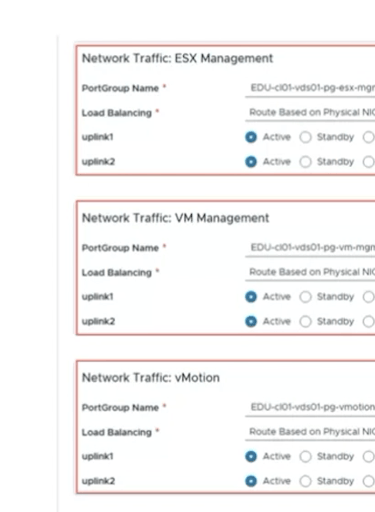
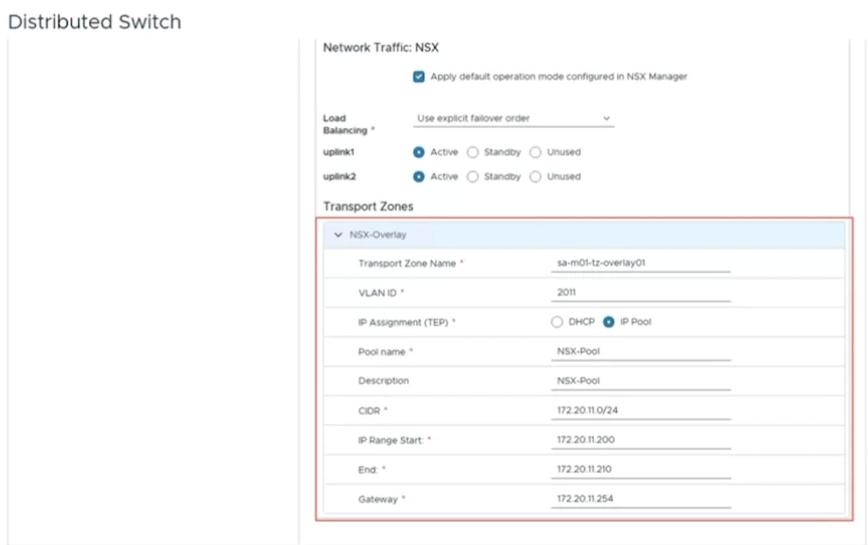
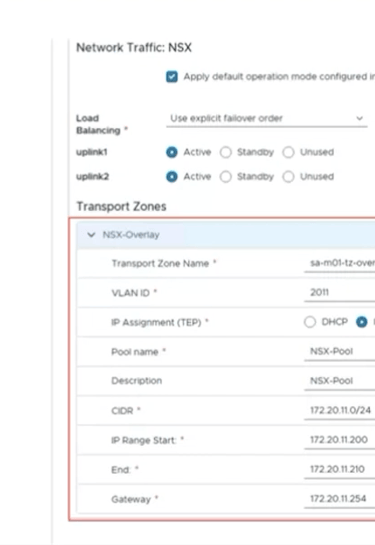
Finally under Distributed switch you can configure the NSX-Overlay settings.
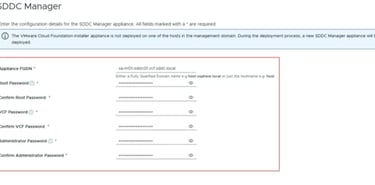
SDDC Manager
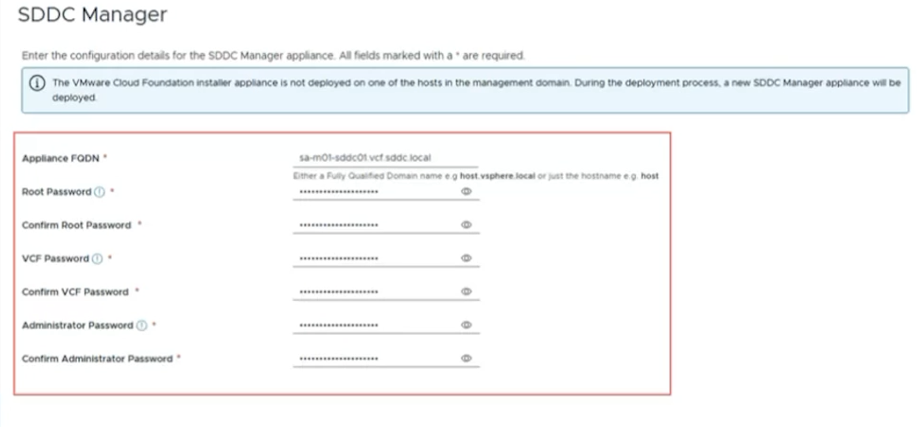
The last section of the 12 steps is to configure the SDDC Manager.
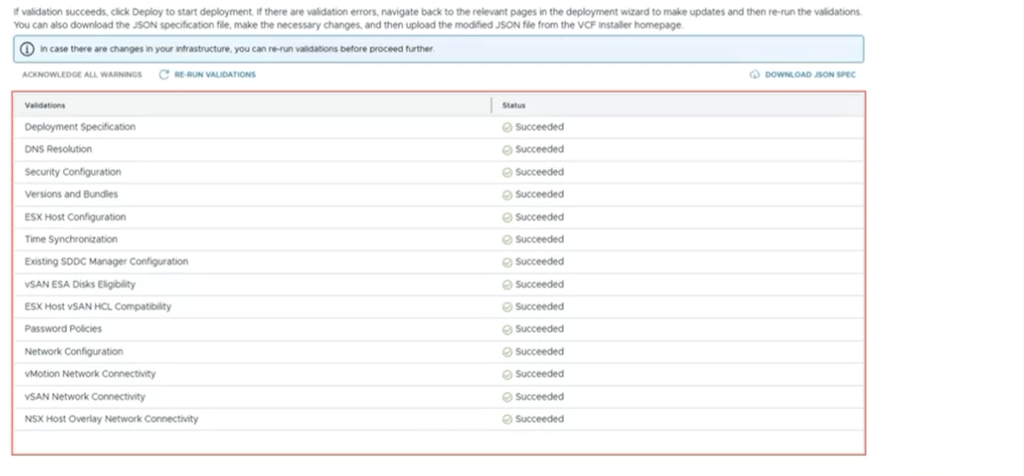
Validate and Deploy
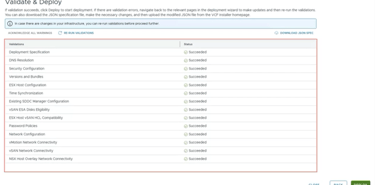
Once we have filled all this information in, we go through validation and then deployment.
Notice in the top right corner we have the option to download JSON. This allows for rapid deployment of new VCF instances with minimal editing of the file.
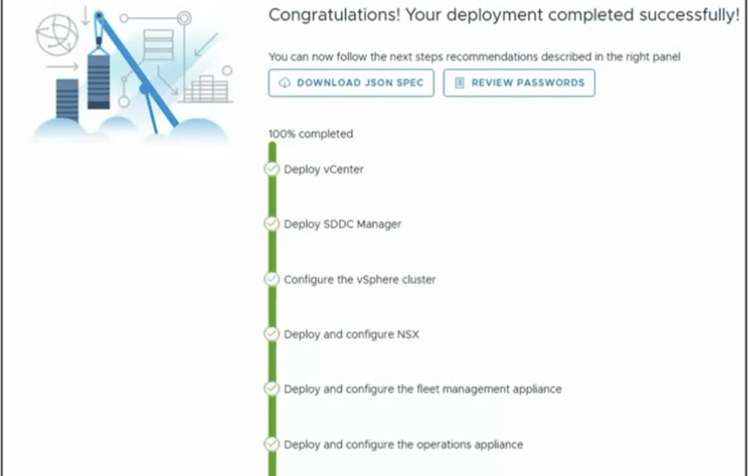
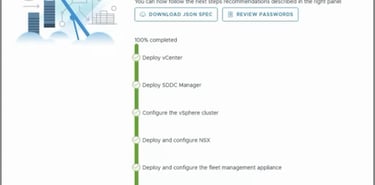
Deployment Summary
As part of the deployment process VCF Installer does the following:
Deploys vCenter
Deploys SDDC Manager
Configures vSphere Cluster
Deploys and configures NSX Managers
Deploys and configures Fleet Management Appliance